Friday, April 3, 2009

Quick and Dirty way to allow remote access to your MySQL server

I usually do this in my lab environment.  I'm sure you will use it with care when you do it in production environment, and to make it more securely and restrictive.

GRANT ALL ON *.* TO 'someuser'@'somehost';

'somehost' could be '%', it will allow all hosts to access.  Again use it with great care!

Then you can use some GUI tools (e.g. MySQL-Front, my favorite GUI for MySQL) to remote access and administer your MySQL database.

http://dev.mysql.com/doc/refman/5.1/en/grant.html

Enhanced PoE on 3560-E and 3750-E


To enable enhanced PoE to deliver power up to 20 Watts on 3560-E and 3750-E platform, you need to use the following command to configure the interface otherwise you will max out at 15.4W:

Switch(config-if) power inline port maximum 20000

http://www.cisco.com/en/US/docs/switches/lan/catalyst3750e_3560e/software/release/12.2_44_se/configuration/guide/swintro.html

Heroes’ Hiro

World Builder

Resetting Cisco Unified Contact Center Express 5.0 to FRESH_INSTALL state

My environment:

Unified Communications Manager 6.1

Unified Contact Center Express 5.0

I’ve encountered a case that the CRS web login password is forgotten accidentally.  If you have similar case like mine you can follow these steps to change your CRS back to “FRESH_INSTALL” state.  Use it with great care as strongly recommend you test it in lab before you do it in production environment. 

1. Go to CRS machine, type "cet" in command prompt.
2. Choose com.cisco.crs.cluster.config.AppAdminSetupConfig
3. Double click the value on the right pane
4. Change setup state to "FRESH_INSTALL".
5. Restart the Node Manager Service.
6. Login with Administrator/ciscocisco.

See this warning:

warning

image

Basic Text-to-Speech example with Festival

My environment: Festival 1.9.6 on RH FC8

A simple example on Festival TTS

echo “I love to visit this blog and I’m going to visit it everyday” | text2wave -o pandaeatsbamboo.wav

Sending HTTP request to external web servers with Cisco Contact Center Express 5.0

My environment:

Unified Communications Manager 6.1

Contact Center Express 5.0

You might want to send HTTP request to external servers during your call flow for some simple integration.  You can do it by creating an aef script with Cisco CRS editor.

Create URL Document Step

Define a local varible and assign the URL string to it.

image

Create another variable to with the type“Document”

image

Then assign the 2 variables to the Create URL Document Step to create this URL Document object.

image

Cache Document Step

You can use the Cache Document Step to send out the HTTP request.

image

External Database integration with Cisco Unified Contact Center Express 5.0

My environment:

Unified Communications Manager 6.1

Unified Contact Center 5.0

MySQL Server 5.0.45 on RH FC8

You can use query or update the external database (e.g. MySQL in my example) in your call flow, by creating an aef script with Cisco CRS Editor. 

1. Download MySQL ODBC connector from MySQL’s website:

http://dev.mysql.com/downloads/connector/odbc/5.1.html

2. Install it on the CRS server.  Add a new system DSN in Administrative tools > Data Sources (ODBC).

mysql-connector

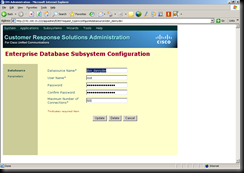
3. Under CRS Web admin page, go to Subsystems > Database, add a new datasource.

image

image

4. In CRS Editor, create a script or modify your existing script using the Database Steps.  Below are several example screen shots on how to use the Database Steps.

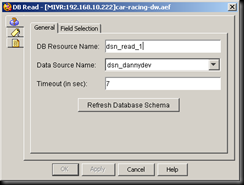
DB Read Step
image

Press “Refresh Database Schema” if you don’t see the data source name you’ve just created in step 3.

image

DB Get Step

You should define DB Read Step before the DB Get Step.  DB Read step is used to define the SQL statement, and DB Get step is used to store the resultset to local variable.

image

image

DB Write Step

DB Write Step is used for INSERT and UPDATE statement.

image

image

The last one DB release step is used to release the database connection.

Playing Audio file on Cisco Digital Media Player

My environment:

Cisco Digital Media Player 4400, version 5.0.2

Cisco Digital Media Manager 5.0.2

It is easy to play video on digital media player, you just need to put your video file link in the video playlist via the digital media designer (DMD).  But if you want to play an audio file on DMP, it is not supported natively in this version.  So the workaround is you can convert the audio file to a video file.  One of the option is using Cisco Media Experience Engine (MXE) 3000, another alternative is to use an open source utility ffmpeg.  Here is an example on to do the conversion:

ffmpeg -i /var/www/html/dms/audio.wav -target pal-vcd /var/www/html/dms/video.mpg

Put the resulting video file inside the video playlist then you can play this “audio” on DMP!

Monday, February 2, 2009

"Unknown DHCP problem.. No allocation possible"

Configuring DHCP client on a Cisco IOS router interface is pretty straight forward:

interface fastethernet1/0

ip address dhcp

But when your DHCP server is assigning addresses with option 150 for IP phones, you will not be able to get your address from the DHCP server for your interface and you will see the error message in debug dhcp:

"Unknown DHCP problem.. No allocation possible"

What you'll need to do is to ask your router interface (the DHCP client) to stop requesting option 150, and there is a per-interface command allows you to do that:

interface fastethernet1/0

ip address dhcp

no ip dhcp client request tftp-server-address

You should be able to get your address by then!